This chapter introduces interactive visualizations using Plotly.
Plotly charts are naturally interactive. In a live Python environment you can hover, zoom, pan, toggle legend groups, and download high-resolution images from the toolbar.
In this CDI free track, charts are rendered as static PNG snapshots for consistency and clean book builds. The PNGs are automatically generated from the same Plotly code using the shared CDI export helper.
To experience full interactivity (hover, zoom, legend toggling), run this chapter locally in Jupyter Notebook, JupyterLab, or VS Code. The first example below is intended to be viewed interactively during development (show=True).
Requirements
Plotly static PNG export requires kaleido.
pip install -U kaleido
Setup
import warningsimport pandas as pdimport plotly.express as pxfrom cdi_viz.theme import ( cdi_notebook_init, cdi_theme, show_and_save_plotly,)warnings.filterwarnings("ignore")# Chapter init: sets Plotly theme + resets the shared figure countercdi_notebook_init(chapter="06", title_x=0.5)df = pd.read_csv("data/cdi-student-outcomes.csv")print(df.head())
     group  test_prep  study_hours  math_score  reading_score  writing_score
0  Group B  completed          3.9          58             64             51
1  Group A       none          7.7          67             85             61
2  Group A       none          9.3          83             65             73
3  Group A       none          3.9          60             67             48
4  Group A       none          8.3          68             63             47
Understand the dataset
This guide uses a CDI synthetic dataset designed for clear plotting practice.
study_hours and math_score support relationship plots
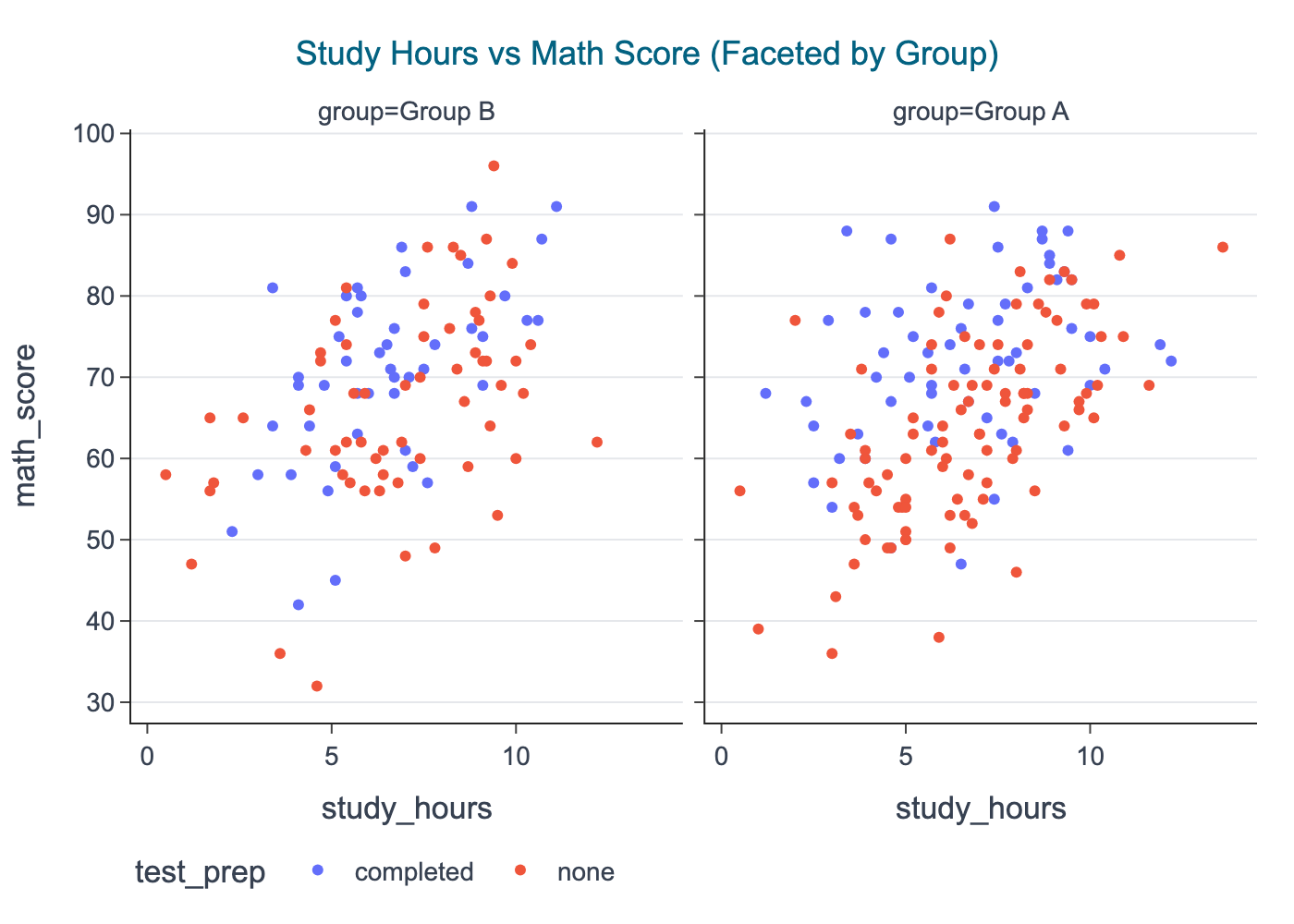
test_prep and group support comparisons and faceting
reading_score and writing_score provide extra hover context
First interactive Plotly visualization
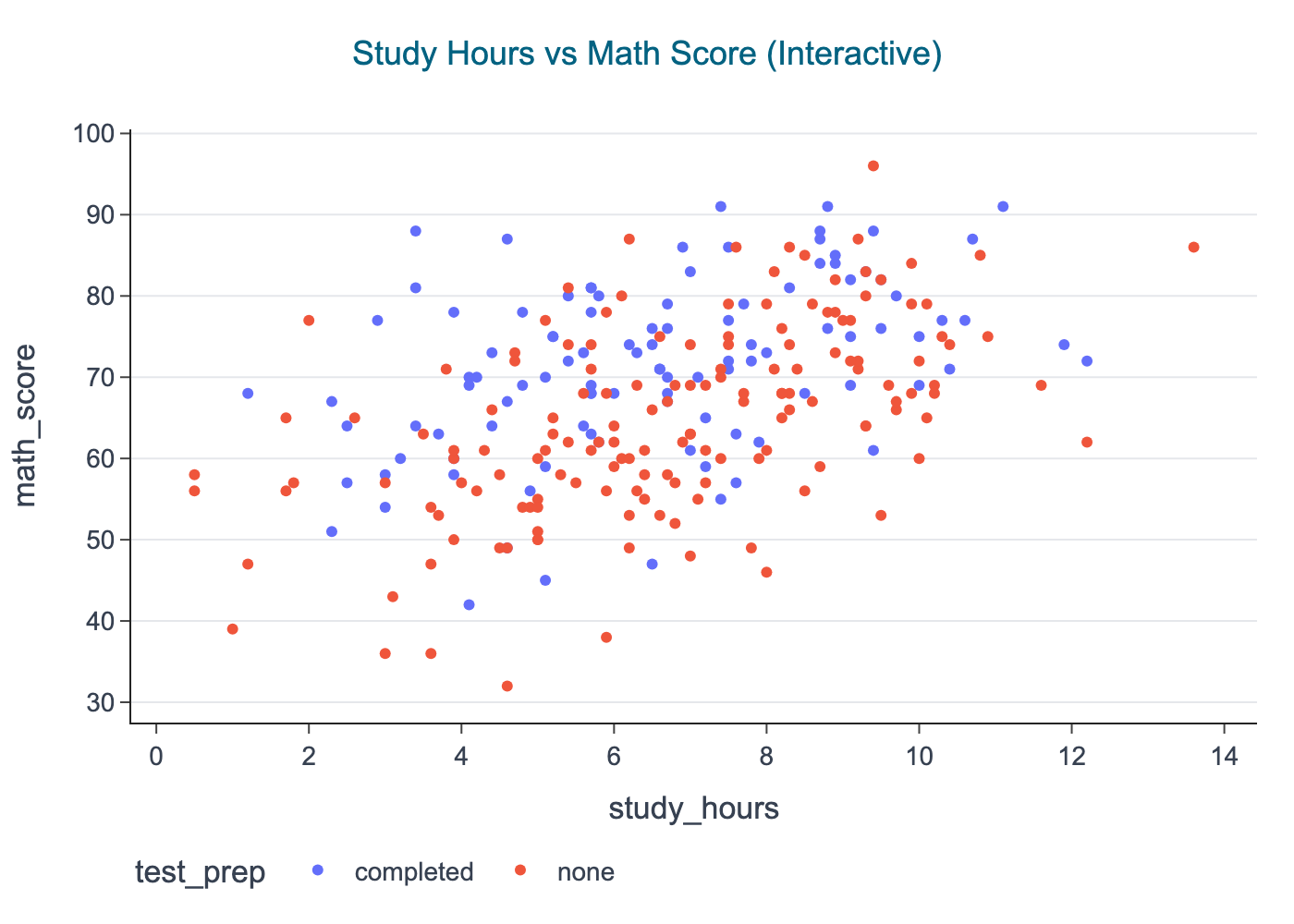
Interactive scatter plot
This plot answers:
Does study time relate to math performance, and does test preparation matter?
fig = px.scatter( df, x="study_hours", y="math_score", color="test_prep", hover_data=["group", "reading_score", "writing_score"], title="Study Hours vs Math Score (Interactive)",)cdi_theme(fig, title_x=0.5) # center the title# Development mode: interactive view + exported PNGshow_and_save_plotly(fig, show=False) # figures/06_001.png
Saved PNG → figures/06_001.png
When you run locally, hover points to inspect values. In the book, you will see the PNG snapshot saved in figures/.
Distribution views
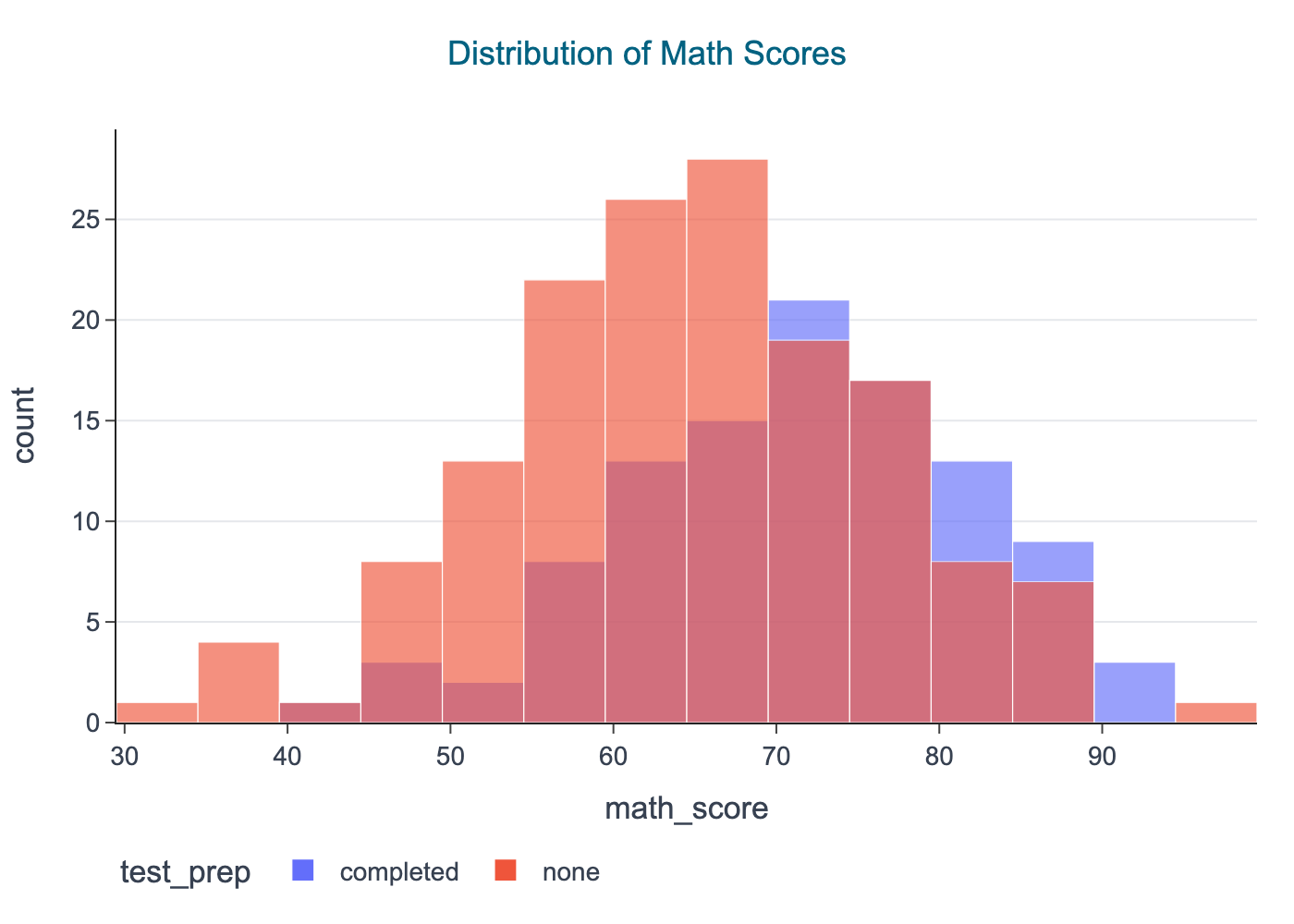
Histogram: distribution of math scores
fig = px.histogram( df, x="math_score", color="test_prep", barmode="overlay", opacity=0.65, nbins=30, title="Distribution of Math Scores",)cdi_theme(fig, title_x=0.5)# Book rendering: save PNG only (no interactive output)show_and_save_plotly(fig, show=False) # figures/06_002.png